Found a MakerWorld model? How to order a print without owning a printer
Updated · 8 min read
Check permission, choose the right download, inspect the plate, and export a service-ready file before you order the physical print.
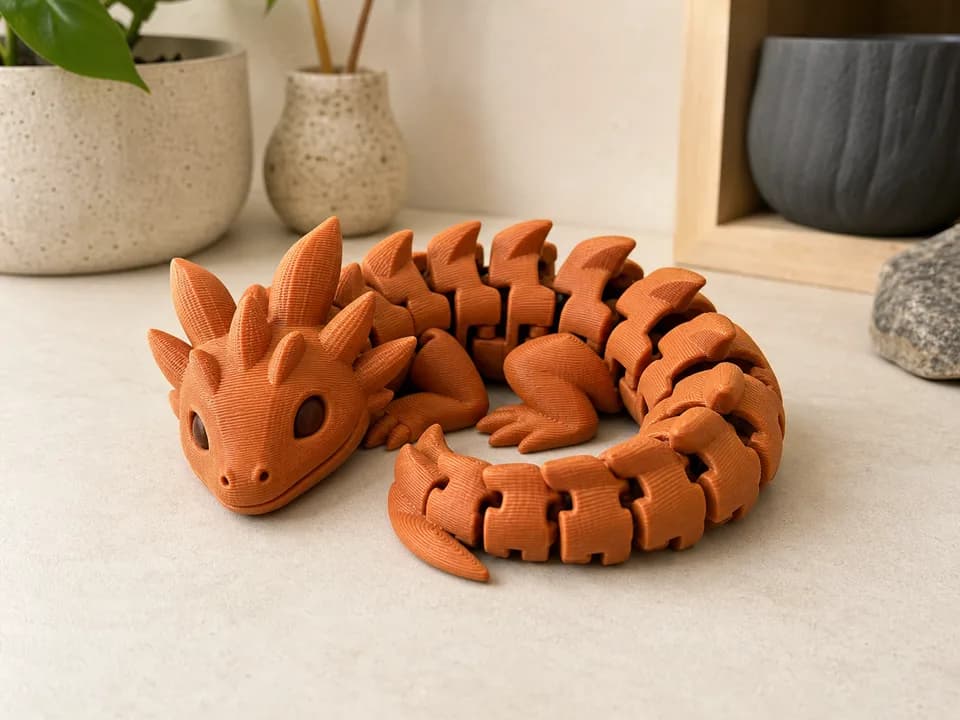
You do not need to own a printer to turn a MakerWorld download into a physical part. A public download does not, by itself, authorize you to send its digital file to a paid print bureau. You need two things before we can run it: a licence or written permission that covers this handoff, and a sliced file prepared for the current workshop setup. The official MakerWorld FAQ says a model can be downloaded or opened in Bambu Studio and sliced there. The important extra step for a print service is checking the licence first, not assuming that every public download comes with the same permissions.
1. Check the model’s licence before downloading
Open the exact model page and read its licence card, creator notes, and any additional terms. MakerWorld listings can use different licences. Its Standard Digital File License is especially restrictive: the displayed terms prohibit sharing or transferring the digital or printed version and prohibit uses involving a fee. You can see the current wording on this MakerWorld model page with the Standard Digital File License. Do not upload a file under that licence to us unless the creator has separately given you written permission, or another applicable licence explicitly permits the paid third-party printing handoff.
MakerWorld’s commercial-membership agreement governs models offered through that separate subscription program; it does not expand the rights on an ordinary download. It confirms that creators define the applicable licence terms and subscribers must understand and follow them. Rely on a membership licence only when your subscription is active and its exact terms cover your requested use.
- Confirm that you own the design or have express permission to send the file to a paid printing service and receive the physical object.
- Check whether attribution is required and keep the creator’s name and source URL with your order notes.
- Look for restrictions on commercial use, adaptations, sharing the digital file, or using a third-party service.
- If the wording is unclear, ask the creator for written permission before ordering. A free download is not automatically permission for every kind of reproduction.
Upload only a design you own or have permission to reproduce. Our upload checkbox records that confirmation for the exact file. See our terms for uploaded designs before ordering.
2. Choose the useful download, not just the first button
A listing may include a project file, one or more print profiles, and source geometry such as STL or STEP. The best starting point depends on how much of the creator’s setup you want to preserve.
| Download | What it gives you | What to check |
|---|---|---|
| 3MF or print profile | Parts, plate layout, colours, and suggested slicer settings | Printer profile, material, plate count, scale, and creator notes |
| STL | Model geometry without printer instructions | Units, size, orientation, supports, and every slicing setting |
| STEP | CAD geometry that can preserve clean curved surfaces | Import scale, separate bodies, orientation, and slicing |
If you start with geometry only, follow our STL-to-print-ready walkthrough. A model file describes shape; it does not yet contain the toolpath, print time, or material total needed for an instant quote.
3. Open the download and inspect every plate
Open the file in Bambu Studio. If Studio asks whether to keep the project’s settings or use your current settings, pause and inspect rather than clicking through. A community print profile may target a different machine, plate size, nozzle, or material than the service can run. Treat the creator’s profile as a useful starting point, not a universal production instruction.
Before slicing, verify:
- the finished dimensions and quantity of every object;
- the material and colour assignments for each part;
- whether supports, a brim, pauses, or assembly steps are expected;
- whether the project contains hidden, optional, or duplicate plates;
- that each object fits the selected service-compatible profile.
Read the description and assembly notes on the original listing too. A clean slice cannot tell you that a hinge needs a pin, two halves need glue, or a decorative insert should be printed separately.
4. Slice it and read the preview
Click Slice plate, then inspect the layer preview. Look for unsupported areas, unexpected solid sections, excessive supports, colour changes, and missing parts. Compare the displayed print time and grams with the result you expected. If you change the orientation, scale, material, or profile, slice again; the old preview no longer describes the job.
Our detailed guide to slicing and exporting a plate covers the export menus. For a single plate, export the plate sliced file. For a project with several required plates, export all sliced plates so the complete set stays together.
5. Export the service-ready file
The reliable hand-off is a sliced .gcode.3mf, not the unsliced project you first downloaded. It carries the toolpath and the estimates used to quote the job. Name the file clearly, keep the original MakerWorld URL for your records, and do not redistribute the creator’s digital file unless its licence allows it.
Drag the export onto the quote upload. You will confirm your design rights, choose compatible stocked material, review the CAD quote, and pay only after the job details are visible. If the amount is higher than expected, the Toronto 3D-printing cost guide explains how material, machine time, minimums, and rush service affect the total.
Common MakerWorld-to-service mistakes
- Skipping the licence: a model being downloadable does not settle whether your requested use is allowed.
- Uploading an unsliced project: it may preserve the model but omit the printable toolpath needed for the quote.
- Trusting a profile without checking it: profiles can be contributed by different users and target different setups.
- Exporting only plate one: many organizers, toys, and assemblies need every plate to make a complete object.
- Ignoring assembly notes: the print may require hardware, glue, magnets, or post-processing that are not part of a standard print order.
Sources checked
- MakerWorld FAQ — the platform’s download, Bambu Studio, and print-profile workflow.
- MakerWorld Standard Digital File License displayed on a model page — restrictions on file transfer, printed versions, and fee-based use.
- MakerWorld Commercial License Membership Agreement — the separate subscription program, creator-defined terms, and subscriber responsibilities.
- MakerWorld Community Guidelines — intellectual-property and licence-compliance rules.
Sources verified: 2026-07-21.
Have a sliced file ready?
Upload it for an instant quote in CAD.